Pages

Thursday, 24 September 2015

HACK LIKE A PRO: How to Crack Passwords,


Hack Like a Pro: How to Crack Passwords, Part 1 (Principles & Technologies)

Welcome back, my neophyte hackers!
I have already done a few tutorials on password cracking, including ones forLinux and WindowsWEP and WPA2, and even online passwords using THC Hydra. Now, I thought it might be worthwhile to begin a series on password cracking in general. Password cracking is both an art and a science, and I hope to show you the many ways and subtleties involved.
We will start with the basic principles of password cracking that are essential to ALL password cracking techniques, followed by some of the tools and technologies used. Then, one by one, I will show you how to use those principles and technologies effectively to crack or capture the various types of passwords out there.

The Importance & Methods of Password Cracking

Passwords are the most widely used form of authentication throughout the world. A username and password are used on computer systems, bank accounts, ATMs, and more. The ability to crack passwords is an essential skill to both the hacker and the forensic investigator, the latter needing to hack passwords for accessing the suspect's system, hard drive, email account, etc.
Although some passwords are very easy to crack, some are very difficult. In those cases, the hacker or forensic investigator can either employ greater computing resources (a botnet, supercomputer, GPU, ASIC, etc.), or they can look to obtain the password in other ways.
These ways might include insecure storage. In addition, sometimes you don't need a password to access password-protected resources. For instance, if you can replay a cookie, session ID, a Kerberos ticket, an authenticated session, or other resource that authenticates the user after the password authentication process, you can access the password protected resource without ever knowing the password.
Sometimes these attacks can be much easier than cracking a complex and long password. I will do a tutorial on various replay attacks in the near future (look out specifically for my upcoming article on stealing the Facebook cookie to access someone's Facebook account).
Now, let's start with the basics.

Step 1: Password Storage

In general, passwords are not stored in clear text. As a rule, passwords are stored as hashes. Hashes are one-way encryption that are unique for a given input. These systems very often use MD5 or SHA1 to hash the passwords.
In the Windows operating system, passwords on the local system are stored in the SAM file, while Linux stores them in the /etc/shadow file. These files are accessible only by someone with root/sysadmin privileges. In both cases, you can use a service or file that has root/sysadmin privileges to grab the password file (e.g. DLL injection with samdump.dll in Windows).

Step 2: Types of Attacks

Dictionary

A dictionary attack is the simplest and fastest password cracking attack. To put it simply, it just runs through a dictionary of words trying each one of them to see if they work. Although such an approach would seem impractical to do manually, computers can do this very fast and run through millions of words in a few hours. This should usually be your first approach to attacking any password, and in some cases, it can prove successful in mere minutes.

Rainbow Table

Most modern systems now store passwords in a hash. This means that even if you can get to the area or file that stores the password, what you get is an encrypted password. One approach to cracking this encryption is to take dictionary file and hash each word and compare it to the hashed password. This is very time- and CPU-intensive. A faster approach is to take a table with all the words in the dictionary already hashed and compare the hash from the password file to your list of hashes. If there is a match, you now know the password.

Brute Force

Brute force is the most time consuming approach to password cracking. It should always be your last resort. Brute force password cracking attempts all possibilities of all the letters, number, special characters that might be combined for a password and attempts them. As you might expect, the more computing horsepower you have, the more successful you will be with this approach.

Hybrid

A hybrid password attack is one that uses a combination of dictionary words with special characters, numbers, etc. Often these hybrid attacks use a combination of dictionary words with numbers appending and prepending them, and replacing letters with numbers and special characters. For instance, a dictionary attack would look for the word "password", but a hybrid attack might look for "p@$$w0rd123".

Step 3: Commonly Used Passwords

As much as we think each of us is unique, we do show some common patterns of behavior within our species. One of those patterns is the words we choose for passwords. There are number of wordlists that have been compiled of common passwords. In recent years, many systems have been cracked and passwords captured from millions of users. By using these already captured passwords, you are likely to find at least a few on the network you are trying to hack.

Step 4: Password Cracking Strategy

Many newbies, when they start cracking passwords, simply choose a tool and word list and then turn them loose. They are often disappointed with the results. Expert password crackers have a strategy. They don't expect to be able to crack every password, but with a well-developed strategy, they can crack most passwords in a very short amount of time.
The key to develop a successful strategy of password cracking is to use multiple iterations, going after the easiest passwords with the first iteration to the most difficult passwords using different techniques for each iteration.

Step 5: Password Cracking Software

John

John the Ripper is probably the world's best known password cracking tool. It is strictly command line and strictly for Linux. Its lack of a GUI makes a bit more challenging to use, but it is also why it is such a fast password cracker.
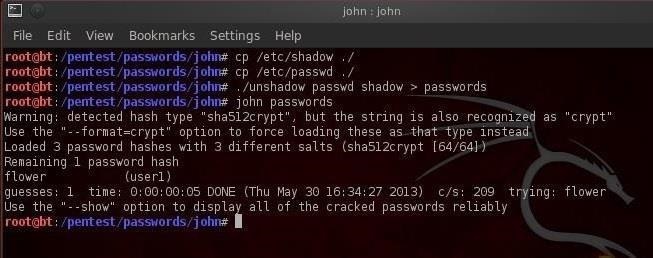
One of the beauties of this tool is its built in default password cracking strategy. First, attempts a dictionary attack and if that fails, it then attempts to use combined dictionary words, then tries a hybrid attack of dictionary words with special characters and numbers and only if all those fail will it resort to a brute force.

Ophcrack

Ophcrack is a free rainbow table-based password cracking tool for Windows. It is among the most popular Windows password cracking tools (Cain and Abel is probably the most popular; see below), but can also be used on Linux and Mac systems.
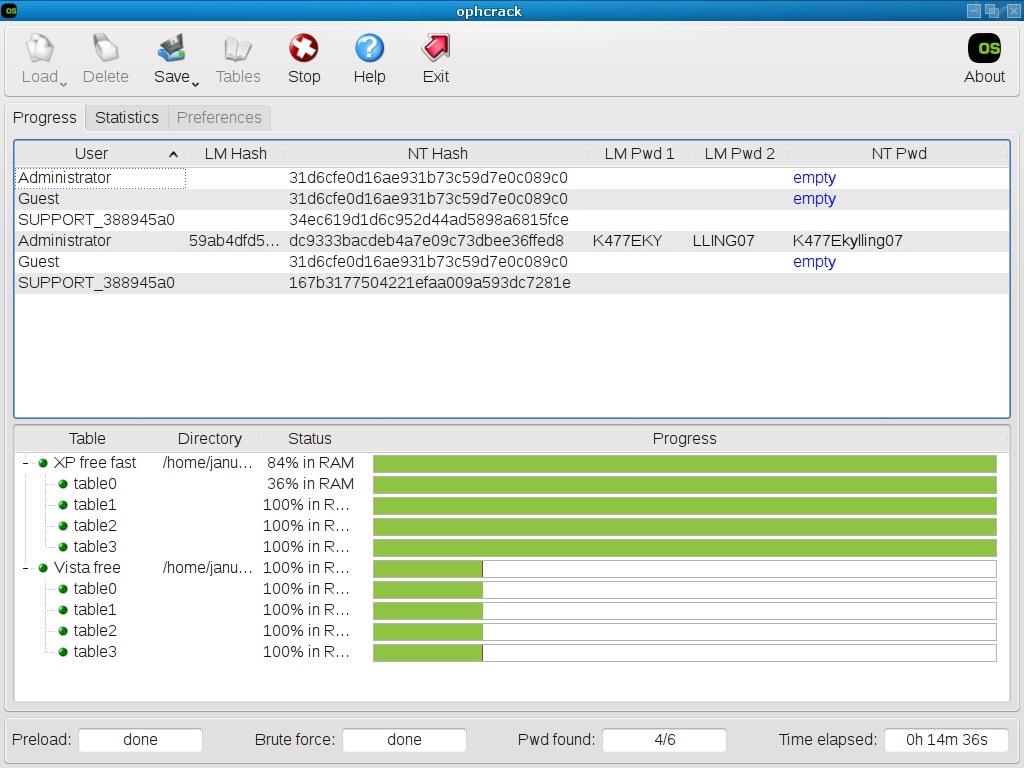
Image by Ysangkok/Wikimedia Commons
It cracks LM and NTLM (Windows) hashes. For cracking Windows XP, Vista and Windows 7, you can download free rainbow tables. You can download Ophcrack on SourceForge, and you can get some free and premium rainbow tables for Ophcrack here.

L0phtCrack

L0phtCrack is an alternative to Ophcrack, and attempts to crack Windows passwords from hashes in the SAM file or the Active Directory (AD). It also uses dictionary and brute force attacks for generating and guessing passwords.
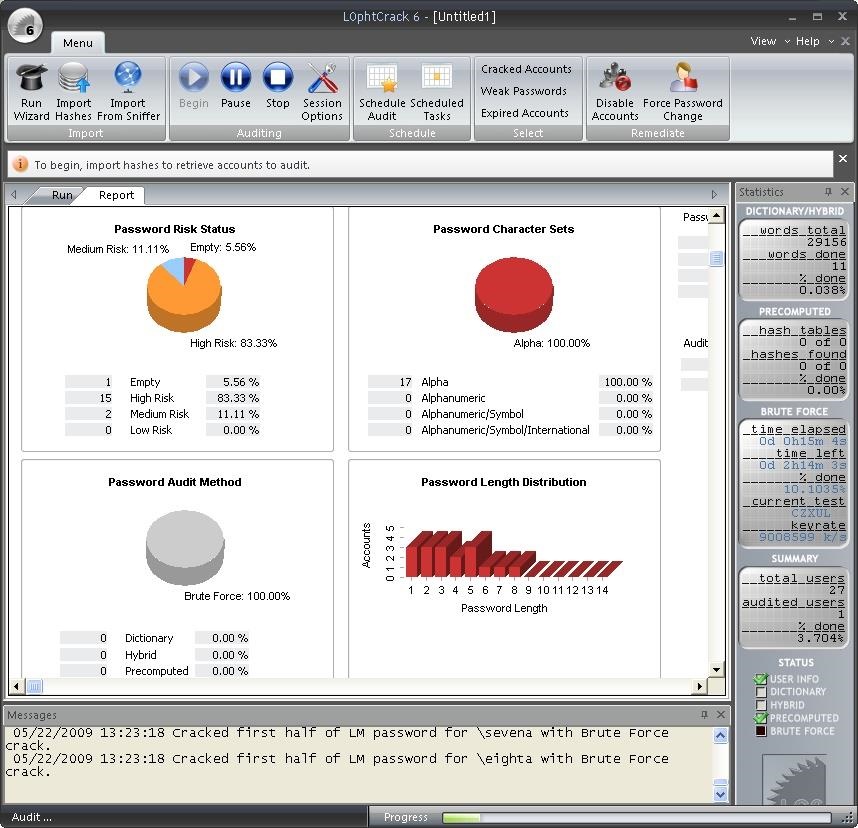
Image via L0phtCrack
L0phtCrack was acquired by Symantec and they promptly discontinued it in 2006. Later, L0phtCrack developers re-acquired this excellent password cracking tool and re-released it in 2009. You can download the tool here.

Cain and Abel

Cain and Abel just might be the best known password cracking tool on the planet. Written strictly for Windows, it can crack numerous hash types, including NTLM, NTLMv2, MD5, wireless, Oracle, MySQL, SQL Server, SHA1, SHA2, Cisco, VoIP, and many others.
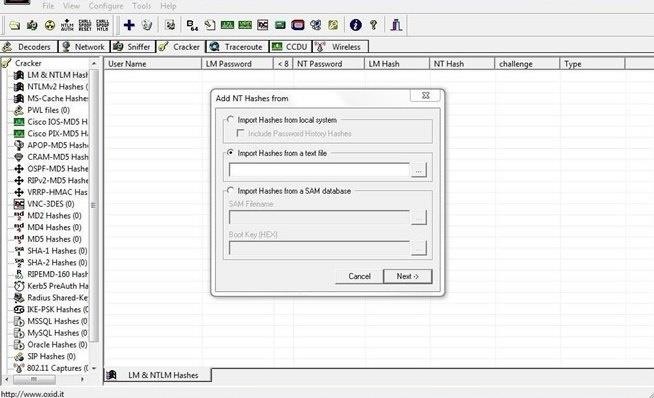
Cain and Abel can crack passwords using a dictionary attack, rainbow attack, and brute force. One of its better features is the ability to select the password length and character set when attempting a brute force attack. And besides being an excellent password cracking tool, it is also a great ARP Poisoning and MiTM tool.

THC-Hydra

THC-Hydra is probably the most widely used online hacking tool. It is capable of cracking web form authentication, and when used in conjunction with other tools such as Tamper Data, it can be a powerful and effective tool for cracking nearly every type of online password authentication mechanism.
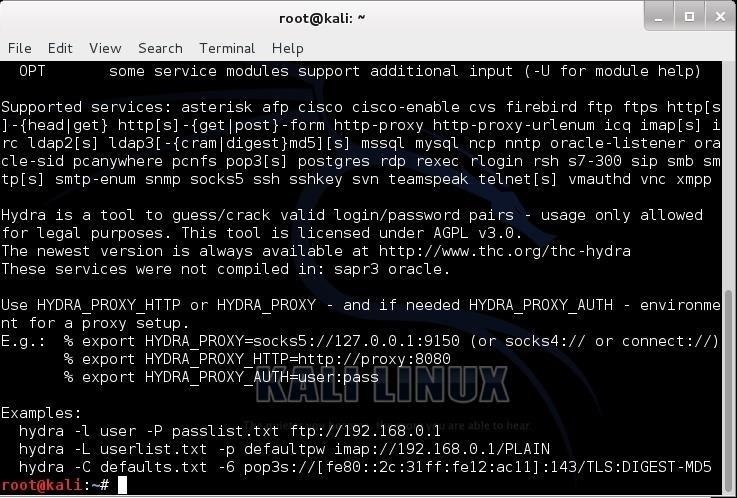
The initial help screen for Hydra.

Brutus

Brutus is an online password cracking tool that many consider the fastest online password cracker. It is free and available on both Linux and Windows, and it supports password cracking in HTTP (Basic Authentication), HTTP (HTML Form/CGI), POP3, FTP, SMB, Telnet, and other types such as IMAP, NNTP, NetBus, etc.
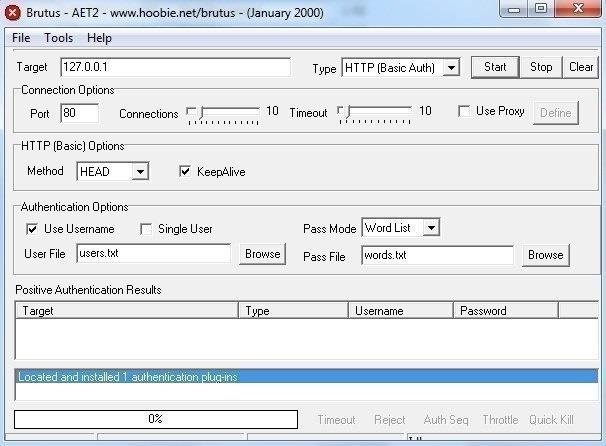
Brutus has not been updated in quite awhile, but it can still be useful and since it is open source, you can update it yourself. Brutus can be downloaded here.

Aircrack-Ng

In my humble opinion, aircrack-ng is undoubtedly the best all-around Wi-Fi hacking software available. It is capable of cracking both WEP and WPA2, and it is also capable of doing the following, among many other things.
  1. Creating a Soft AP
  2. Creating an Evil Twin
  3. Creating a Rogue AP
  4. Conducting a DOS attack against a Wi-Fi AP
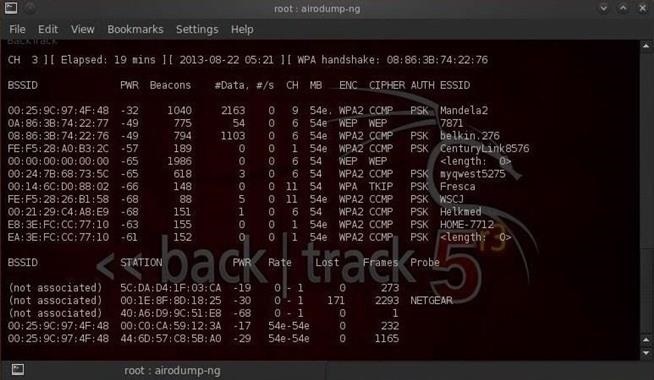
It is only available for Linux and requires a bit of a learning curve to master, but you will be richly rewarded for the time spent learning it. In addition, to be most effective you will need to use an aircrack-ng compatible wireless card, so check their extensive list before buying your card. You can find more info on aircrack-ng over in my Wi-Fi hacking series.
Aircrack-ng is built into BackTrack and Kali and can be downloaded here.

Step 6: Password Cracking Hardware

Botnet

Password cracking is simply a function of brute force computing power. What one machine can do in one hour, two machines can do in a half hour. This same principle applies to using a network machines. Imagine what you can do if you could access a network of one million machines!
Some of the botnets available around the globe are more than a million machines strong and are available for rent to crack passwords. If you have a password that might take one year to crack with your single CPU, a million-machine botnet can cut that time to approximately 1 millionth the time, or 30 seconds!

GPU

GPUs, or graphical processing units, are much more powerful and faster than CPU for rendering graphics on your computer and for cracking passwords. We have a few tools built into Kali that are specially designed for using GPUs to crack passwords, namely cudahashcat, oclhashcat, and pyrit. Look for coming tutorials on using these tools and the GPU on your high-end video card to accelerate your password cracking.

ASIC

In recent years, some devices have been developed specifically for hardware cracking. These application-specific devices can crack passwords faster than over 100 CPUs working symmetrically.
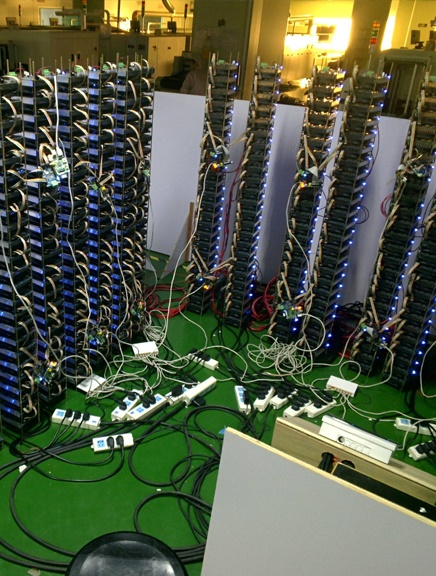
[1] Bitfury boards by Black Arrow, [2] Butterfly Labs processor, [3] Inside the Butterfly Labs Monarch
Images via Bitcoin TalkCoinDeskGizmodo
Black Arrow Software and Butterfly Labs, among others, are now selling these devices for prices up to $1500 per.
That concludes our beginning lesson on the basics of general password cracking. Stay tuned for more lessons as we go more in-depth with specific examples of using some of the tools and methods we have just covered above.

HOW TO CRACK WI-FI PASSWORD WITH ANDROID AND BROWSE FOR FREE


How to Crack Wi-Fi Passwords with Your Android Phone and Get Free Internet.....

Want to take advantage of your neighbor's super fast Wi-Fi connection? If they're smart, they probably have it password protected (otherwise you wouldn't be reading this, would you?). But if you have an Android phone, you can get back at them for always parking in your spot and slamming the door when they get home at 2 a.m.—by stealing...er, borrowing, their connection.
A group of researchers came up with a hack to get around hardware limitations and add monitor mode to Android devices to allow them to crack Wi-Fi passwords.
Image via blogspot.com
Monitor mode lets you see all the traffic going through a network and how many devices are connected to it, but it can also be used for more nefarious purposes. If you're patient enough, you can crack the WEP key on a network by capturing data packets in monitor mode.
To add monitor mode to an Android device, the researchers reverse engineered the Broadcom radio chip. They modified the firmware on the chipsets in the Nexus One and Galaxy S II, which are the same ones used in the majority of mobile devices. The code is posted on Google Code, but you'll need to know which chipset you have and download the right one for your phone.
Once you've downloaded the code, it's as simple as extracting the .zip file, then running the setup and configuration files. They've included instructions for each chipset and a few different devices on their blog, so head over there to find the specifics for yours.
After it's up and running, check out one of our tutorials to learn how to use it to crack the key. So, next time your neighbor wants to borrow your power drill, rest assured that you're "borrowing" something much more valuable from them!

Wednesday, 23 September 2015

RECOVER ANDROID DEVICE INCASE OF FORGOT PASSWORD/PATTERN UNLOCK ANDROID DEVICE

Recover Android Device in case of Forgot password/pattern unlock an Android device

Edited by Raj, Charmed, Anonymous, Reema and 32 others
...More
What to do when you've forgotten your unlock pattern or password on your Android device'
If you forgot the password or pattern that locks your Android device, or a child or relative was playing with it and entered the wrong password or pattern enough times that it's now locked, this guide will help you. Whatever the reason, in this wiki we will cover exactly what to do to unlock your Android device.
First, don't panic. There are several ways to unlock your device without resetting it and losing all of your data. Just below this section, we have provided a list of solutions. Each one links to a series of detailed steps you can follow to solve your particular problem. We'll start with the solutions that are easiest to apply, and won't cause any loss of data. If those don't work for you, we've also provided some more in depth and complicated solutions, but make sure to try the easiest solutions first. We encourage you to read through this guide before applying a solution that involves any loss of data. Many times you will be able to recover data, or access a device you that thought was otherwise locked.
Also, keep in mind that if you do end up needing to perform a Factory Reset on your device, the data on your SD card should not be changed, and you should take it out before trying any of the more complex solutions listed here (just in case a future Android update changes this).
Ad

How to Unlock Your Android Device

The following seven solutions will help you to unlock your Android device.
Find your problem below, and click the link for that step to jump to the guide focused on solving that specific problem. Note that some users have successfully unlocked their device using a paid app, discussed in our guide for how to unlock your device with a paid unlock app.
  1. 1
    How to unlock your device if you remember your password, but are locked out from too many pattern attempts.
    This is the most common, and easiest method to fix, if you remember your pattern. Simply wait until the timer counts down, and you can try again, or read on for more solutions. CLICK HERE FOR STEPS on what to do if you've had too many pattern attempts at login
    Ad
  2. 2
    How to unlock your device if you have forgotten the unlock password or unlock pattern.
    This is for users who have forgotten their unlock password or pattern, but still have access to their Google Password Recovery Account. CLICK HERE FOR STEPS to unlock your Android device in case of a forgotten password or unlock pattern
  3. 3
    How to unlock your Android device if you remember your password or unlock pattern, but your device does not accept the correct Google ID and password.
    This is for users who are inputting the correct Google ID and Password, but have found that their device is still locked. CLICK HERE FOR STEPS to unlock your device if it does not accept the correct Google ID and password
  4. 4
    How to unlock your device if you don’t remember your Google Password Recovery Account credentials.
    This is for users who don't remember their Google Password Recovery Account details, and need an alternate method of accessing their device. If you're still locked out from pattern attempts, we've included a paid App that worked for us. We also provided some additional troubleshooting steps in the event the App doesn't work on newer devices. CLICK HERE FOR STEPS to unlock your device if you don’t remember your Google password recovery account credentials
  5. 5
    How to unlock your Android device without a registered Gmail or email account.
    This step is for users who do not have registered Gmail or associated email accounts for their devices. Note that all of your data will be erased, as this step involves a Factory Reset. However, depending on your settings, you might be able to recover some of your music or media files, depending on your device settings. CLICK HERE FOR STEPS to unlock your android device without a registered Gmail or email account
  6. 6
    How to reset your Android device and unlock data or tablet using PC via the ADB (Android Debug Bridge).
    This only works if you have previously installed ADB. If you have installed it, keep in mind that these steps are complicated. They involve a level of device access that novice users should be careful attempting, and it can result in complete data loss. If you have not already installed ADB, then this will not work on your device. CLICK HERE FOR STEPS to reset your pattern and unlock data using debugging
  7. 7
    How to perform a Factory Reset on your Android device.
    This is a last resort, and should not be attempted as anything other than that. It will result in the loss of all data on your device, though anything on your SD card will not be lost. Simply remove the SD card before taking this last step. CLICK HERE FOR STEPS to factory reset an Android device

What to Do If There Were Too Many Pattern Attempts at Login

You can just wait until the timer counts down, and try your pattern again.
If the wrong pattern has been entered too many times, your Android phone will lock. You'll see an on screen message indicating that you have entered the wrong lock code too many times. When this happens, there are two things you can do.
  1. 1
    You can simply wait for the timer, and try the unlock pattern again.
     
    1. A timer should show on your device indicating the amount of time until you can attempt to enter a new pattern unlock code. This is particularly helpful if a child or friend has attempted to unlock your device too many times.
  2. 2
    To immediately access your device when it has been locked due to the wrong pattern being entered too many times, you can access it with your Google Account.
     
    1. Enter the Google account and password associated with your phone or device.
    2. Once you enter the correct account details, the lock code will reset, then you will be able to access your phone or device.

How to Unlock Your Android Device in Case of a Forgotten Password or Unlock Pattern

One of the fastest and easiest ways to unlock your Android device.
If you forgot your password or unlock pattern, but still have access to your Google Recovery Account, then you can just click on "forgot password?" which will take you to a screen where you will be required to enter your Google Account username and password. You'll need to input the same registered username and password you use at the Google Play store. A screenshot is below, and you can use this link to the Accounts Recoverypage.

How to Unlock Your Device If It Does Not Accept the Correct Google ID and Password

If you are entering the correct password or unlock pattern, but your Android device isn't recognizing it, this will help.
Google has many methods in place to reset lost or forgotten passwords and patterns. The steps below will help you to access your Android device again if you're having trouble, but still have access to your recovery accounts.
  1. 1
    Go to AuthSubTokens and enter your login details to see if your Android device is listed.
    If your device is listed, it will be shown as an "Android Phone".
  2. 2
    Revoke access for the device.
  3. 3
    Generate a new password.
     
    1. At the bottom of the page, you will see an option to "Generate New Application-Specific Password".
    2. Enter any name and click on "Generate Password".
    3. A 16-digit password will be generated.
    4. Enter this new password in your Android device, along with the correct Google ID.
  4. 4
    If the "Generate password" option is disabled, you'll need to enable 2-Step Verification.
     
    1. Follow the 2-Step Verification link to Google, and set up 2-Step Verification.
    2. Depending on your device, you'll receive options from Google to generate a new password and access your Android device using the 2-Step Verification process.

How to Unlock Your Device If You Don’t Remember Your Google Password Recovery Account Credentials

What to do if you no longer have your Google Account username and password.
If you have lost, forgotten, or even changed your Google Account credentials, and can't get the above steps to work, you can follow these steps to reset your Google Account password. Then you can use the new password to gain access to your device.
Alternatively, we've included a paid App in Step 3 that may let you unlock your device. While it's not 100% guaranteed to work, it worked for us, though we did have to use our battery reset workaround, described in Step 4.
  1. 1
    How to access your locked Android device if you still have access to the mobile number you set it up with.
     
    1. Go to the Accounts Recovery Page.
    2. Select one of the available options.
    3. Note that if you choose "I don't know my password", Google will require your Google email address.
    4. Enter the same email address you used when you registered your phone.
    5. If you can't remember it, you can reset your password from a device you signed in with recently, even if it is not the device that is locked.
    6. Note that Google actually recommends using another device that is not locked.
    7. In this case, even if you are resetting from another or unknown device, click "Yes continue".
    8. If you can remember any recent password you can enter it.
    9. If not, click "I don't remember".
    10. You will then be asked to enter your mobile number.
    11. Google will then send a verification code to your number.
    12. Enter the verification code in the field and click "continue".
    13. Now enter a new password and click "Reset password".
    14. Use the new password on your device.
  2. 2
    How to verify your identity if you don't remember the mobile number you used when registering your Android device.
     
    1. If you do not remember the mobile number you entered into your Google Account for security purposes, click 'verify your identity'.
    2. Google will then ask several questions related to past passwords, contacts, recent emails, or other information.
    3. Keep answering these questions with as much information as you remember until you recover your Google ID and can log back into your device.
  3. 3
    If you still can't access your device, and you weren't able to recover it using the above steps, you can try a paid App.
    While it's not 100% guaranteed to work, it's a last resort solution that most of the people who have downloaded and used the App have found helpful. Follow this link to learn how to unlock your device with a paid unlock app.

How to Unlock Android Device Without a Registered Gmail or Email Account

If you've inherited or purchased a previously owned Android device, or never set up a Google account, here's how to get it working.
Maybe you purchased an Android device that was previously owned, traded with a friend, or you were given one by a family member or friend who upgraded. Perhaps you just never got around to setting your own account up, and the other steps in this guide haven't worked for you.
Whatever the reason, if you've already tried the other steps listed here and they haven't worked for you, you're unfortunately going to have to perform a Factory Reset. Nothing else is going to put your phone back into a usable state.
Note that this will erase all your data. But you may still be able to save some of your music or media from the phone, depending on your settings. Also, make sure to remove the SD card as an added precaution. It should not be modified when performing a Factory Reset, but that could change in a future release of Android, so it's better to be safe than sorry. Here's the short version of how to do this:
  1. 1
    To recover media from your device, take these steps:
     
    1. Connect your device to a computer USB port.
    2. Use the computer to navigate to your device.
    3. It should show up under "My Computer".
    4. Your pictures are under the "DCIM" folder.
    5. Click and drag this folder to your desktop, or to any other folder where you want to store this backup of your pictures.
    6. Also backup the "Music" folder in the same manner, by dragging it where you want to save the backup to.
    7. Repeat this process for any other folders you want to backup, like "Pictures" and "Downloads" - they will be deleted once the device is reset.
  2. 2
    To remove your SD card, take these steps:
     
    1. If you have installed a storage card, much of your music and photo data may be stored on it. You will not lose this data by factory resetting your Android Device, but just to be sure, remove the SD card.
    2. Open up the back cover.
    3. Remove the battery.
    4. Take out the storage card.
    5. Put the battery back in, and the cover.This is to be sure you don't accidentally knock the battery out while trying to reset your device.
  3. 3
    To perform a Factory Reset, take the following steps:
     
    1. Turn off your Android device.
    2. Press and hold the “power”, “volume down”, and “camera” buttons simultaneously. If your mobile device does not have a camera function, just press and hold the “power” and “volume down” buttons.
    3. Release the buttons once your Android device is powered on.
    4. Scroll using your “Volume up and down” button until you find the “Factory Data Reset” option.
    5. Tap the "Factory Data Reset" option.
    6. Tap "Reset phone".
    7. This will erase all of your data, but it will allow you to unlock your Android mobile device.
    8. A confirmation message to clear data will appear.
    9. Select "Erase everything", which will permanently delete all of the data.
    10. You should now be able to use your Android device without previously having had a Google Account or email address registered.
    11. Make sure you review this guide to see the standard recovery options, and set up an alternate method to recover your phone in the future, so you don't have to perform another "Factory Data Reset."
    12. Don't forget to put your SD card back, and copy your files back to your device, from the location you saved them to on your computer.
    Ad

How to Factory Reset an Android Device

This is the last resort, when everything else has failed. You will lose your data.
If your Android device is unable to connect to the Internet while locked, then unfortunately you have lost access to the device. This means that you'll need to perform a full Factory Reset, which will unfortunately result in the loss of all data on your device. However, any data saved to your SD card will not be lost. Simply remove the SD card as a precaution, before performing a Factory Reset.
We've provided simple instructions earlier in this guide for doing this in the section titledHow to Unlock Android Device Without a Registered Gmail or Email Account, however, there is much more to it than that, and you might want to view the following section as well.
This is because of the complexity of a Factory Data Reset, which we've discussed in detail in another guide. That guide can be found on VisiHow at How to perform a full factory reset on an Android device. We encourage you to try other solutions presented here if you have not already tried them. Otherwise, we're sorry that you have to take this step, and we understand how frustrating it can be.
Please take note of the preferred recovery options discussed in this guide, so that you're able to avoid taking this step in the future. If you need additional help, please ask us, and a contributor will answer your question.